JavaScript Notes
HubYour First JavaScript Program — Hello World & Beyond Complete Guide 2026History of JavaScript — Complete Timeline from 1995 to 2026How JavaScript Runs — Complete Guide to Execution, Call Stack & Event LoopJavaScript Engine Explained — V8, JIT Compilation & How Code Gets FastJavaScript Use Cases — 15 Things You Can Build with JavaScript (2026)JavaScript vs Other Languages — Complete Comparison Guide 2026What is JavaScript? Complete BeginnerWhy Learn JavaScript in 2026? Career, Salary, Scope & Benefits GuideJavaScript Break Statement Tutorial – Complete Guide with ExamplesJavaScript Break and Continue Statements – Complete Guide with ExamplesJavaScript Continue Statement Tutorial – Skip Iterations with ExamplesJavaScript Do While Loop Tutorial – Execute at Least Once with ExamplesJavaScript Do-While Loop Tutorial – Complete Guide with ExamplesJavaScript For Loop Tutorial – Complete Guide with ExamplesJavaScript If Statement Tutorial – Conditional Logic with ExamplesJavaScript If Else Statement Tutorial – Complete Guide with ExamplesJavaScript If Statement Tutorial – Complete Guide with ExamplesJavaScript Nested If Statement Tutorial – Multi-Level Conditions with ExamplesNested Loops in JavaScriptJavaScript Control Flow Practice Programs – 20+ Exercises with SolutionsJavaScript Switch Statement Tutorial – Case Matching with ExamplesSwitch Statement in JavaScriptJavaScript While Loop Tutorial – Complete Guide with ExamplesJavaScript Arrow Functions Tutorial – Syntax, Use Cases & this BindingJavaScript Callback Functions Explained – Synchronous & AsynchronousJavaScript Closures Explained – Lexical Scope, Private State & MemoryJavaScript Function Declaration Tutorial – Hoisting, Syntax & ScopeJavaScript Function Expression Tutorial – Anonymous, Named & AssignedJavaScript Higher Order Functions Tutorial – map, filter, reduce & Custom HOFsJavaScript IIFE Explained – Immediately Invoked Function ExpressionJavaScript Functions Practice Programs – 20+ Exercises with SolutionsJavaScript Recursion Tutorial – Call Stack, Base Case & Recursive PatternsJavaScript Array Basics - Complete BeginnerJavaScript Array Methods - Complete Reference Guide with ExamplesJavaScript Array Programs - 20+ Practice Problems with SolutionsJavaScript Arrays Basics - Complete Guide with Examples & DiagramsJavaScript Array filter() Method - Complete Tutorial with ExamplesJavaScript filter() Method — Complete Guide with Examples 2026JavaScript Array find() Method - Complete Tutorial with ExamplesJavaScript find() & findIndex() — Complete Guide 2026JavaScript Array map() Method - Complete Tutorial with ExamplesJavaScript map() Method — Transform Arrays Complete Guide 2026JavaScript map() vs forEach() - Key Differences with ExamplesJavaScript Array push() and pop() - Complete Tutorial with ExamplesJavaScript Array reduce() Method - Complete Tutorial with ExamplesJavaScript reduce() Method — Complete Deep Dive with Examples 2026JavaScript Array shift() and unshift() - Complete Tutorial with ExamplesJavaScript Array sort() Method - Complete Tutorial with ExamplesJavaScript splice() vs slice() - Complete Tutorial with ExamplesJavaScript Object Destructuring - Complete Guide with ExamplesJavaScript Objects - Complete Guide to Object Basics with ExamplesJavaScript Object Methods - Built-in Methods & Custom Methods Complete GuideJavaScript Object Programs - Practice Problems with SolutionsJavaScript Object Properties - Keys, Values, Descriptors & Dynamic PropertiesJavaScript Rest Operator (...) - Parameters, Destructuring & Complete GuideJavaScript Spread Operator (...) - Complete Guide with ExamplesJavaScript this Keyword - Complete Guide with Binding Rules & ExamplesJavaScript String Basics - Complete Guide to Strings with ExamplesJavaScript String Methods - Complete Reference with Examples & OutputJavaScript String Programs - Practice Problems with SolutionsJavaScript String Replacing - replace(), replaceAll() & Regex Patterns GuideJavaScript String Searching Methods - includes, indexOf, startsWith, match GuideJavaScript Template Literals (ES6) - Complete Guide with Tagged TemplatesJavaScript DOM Changing Content - textContent, innerHTML, setAttribute Complete GuideJavaScript DOM Changing Styles - CSS Manipulation, classList & getComputedStyleJavaScript DOM Creating Elements - createElement, appendChild, DocumentFragment GuideJavaScript DOM Introduction - Complete Guide to Document Object ModelJavaScript DOM Traversal - Navigate Parent, Child & Sibling NodesJavaScript DOM Forms - Form Handling, Validation & FormData Complete GuideJavaScript localStorage - Complete Guide to Web Storage APIlocalStorage vs sessionStorage - JavaScript Web Storage Comparison GuideJavaScript DOM Removing Elements - remove(), removeChild() Complete GuideJavaScript DOM Selecting Elements - querySelector, getElementById Complete GuideJavaScript sessionStorage - Complete Guide to Session-Based Web StorageJavaScript Click Event - addEventListener, Event Handler Complete GuideEvent Bubbling in JavaScript – Complete Guide with Examples (2026)Event Capturing in JavaScript – Complete Guide to Capture Phase (2026)Event Delegation in JavaScript – Complete Guide with Examples (2026)JavaScript Event Object – Complete Guide with Examples (2026)JavaScript Form Events – Complete Guide with Examples (2026)JavaScript Keyboard Events – Complete Guide to keydown, keyup & Key Properties (2026)JavaScript Mouse Events – Complete Guide with Examples (2026)JavaScript Async Await - Complete Guide with Examples & Error HandlingJavaScript Call Stack - Complete Guide with Visual Diagrams & ExamplesJavaScript Callback Queue (Task Queue) - Complete Guide with DiagramsJavaScript Callbacks - Complete Guide with Callback Hell & PatternsJavaScript Event Loop - Complete Guide with Visual Diagrams & ExamplesJavaScript Fetch API - Complete Guide with Examples, Error Handling & Async/AwaitJSON in JavaScript - Complete Guide: Parse, Stringify, Fetch & Error HandlingJavaScript Promise.all, Promise.race, Promise.any, Promise.allSettled — Complete Guide 2026JavaScript Promises - Complete Guide with Chaining, Error Handling & Event LoopSynchronous vs Asynchronous JavaScript — Complete Explanation 2026JavaScript Web APIs - Complete Guide: setTimeout, fetch, DOM Events & MoreClosures in JavaScript — Complete Guide with Examples 2026Hoisting in JavaScript — Complete Guide with Examples 2026Prototype in JavaScript — Complete Guide with Examples 2026Scope in JavaScript — Complete Guide with Examples 2026Browser Object Model (BOM) in JavaScript — Complete GuideCanvas API in JavaScript — Complete Drawing & Animation GuideDrag and Drop API in JavaScript — Complete TutorialGeolocation API in JavaScript — Get User Location TutorialHistory API in JavaScript — SPA Routing & pushState GuideNotification API in JavaScript — Push Notifications TutorialService Workers in JavaScript — Offline, Caching & PWA GuideWeb Storage API in JavaScript — localStorage & sessionStorage GuideWeb Workers in JavaScript — Multithreading & Background Tasks GuideJavaScript Interview — Behavioral Questions and Soft Skills Guide 2026Common JavaScript Interview Mistakes — What to Avoid 2026JavaScript Interview Tips — Strategy and Preparation Guide 2026JavaScript Mock Interview — Practice Questions with Solutions 2026JavaScript System Design — Frontend Architecture Interview Guide 2026JavaScript apply() Method - Complete Guide with ExamplesJavaScript bind() Method - Complete Guide with ExamplesJavaScript call() Method - Complete Guide with ExamplesJavaScript call() vs apply() vs bind() - Complete Comparison GuideJavaScript Currying - Complete Guide with ExamplesJavaScript Debounce - Complete Guide with Timeline DiagramsJavaScript Execution Context - Complete Guide with Stack DiagramsJavaScript Garbage Collection - Memory Lifecycle & Mark-and-Sweep GuideJavaScript Generators - Complete Guide with yield and IterationJavaScript Hoisting - Complete Guide with var, let, const & FunctionsJavaScript Iterators - Complete Guide with Iterator ProtocolJavaScript Lexical Scope - Complete Guide with Scope Chain DiagramsJavaScript Memory Management - Complete Guide with Lifecycle DiagramsJavaScript Modules - Complete Guide with import export ExamplesJavaScript Scope - Complete Guide with var, let, const & Scope ChainJavaScript Symbols - Complete Guide with Well-Known SymbolsJavaScript Throttle - Complete Guide with Timeline DiagramsJavaScript Comments Complete Guide – Single Line, Multi-line & JSDoc with ExamplesJavaScript Data Types Complete Guide – Primitives, Objects & typeof with ExamplesJavaScript Input and Output Complete Guide – console.log, prompt, alert & DOM with ExamplesJavaScript Keywords Complete Guide – Reserved Words List with Examples for BeginnersJavaScript null vs undefined – Complete Guide with Differences, Examples & Interview Q&AJavaScript Operators Complete Guide – Arithmetic, Comparison, Logical & More with ExamplesJavaScript Strict Mode Complete Guide – JavaScript Type Conversion Complete Guide – Explicit & Implicit Coercion with ExamplesJavaScript var vs let vs const – Complete Guide with Scope, Hoisting & Best PracticesJavaScript Variables Complete Guide – Declaration, Naming Rules & Memory Model for BeginnersDeque (Double-Ended Queue) in JavaScript — Complete GuideLinked List in JavaScript — Nodes, Pointers & Operations GuideJavaScript Map — Key-Value Data Structure Complete GuideJavaScript Numbers — IEEE 754, Precision, and Number Methods GuidePriority Queue in JavaScript — Min Heap Implementation GuideQueue Data Structure in JavaScript — FIFO, Enqueue & Dequeue ExplainedJavaScript Set — Unique Values Data Structure GuideSorting Algorithms in JavaScript — Bubble, Merge, Quick Sort GuideStack Data Structure in JavaScript — LIFO, Push, Pop ExplainedJavaScript Typed Arrays — ArrayBuffer, Int32Array, Float64Array GuideJavaScript WeakMap — Weak References, Memory Management GuideJavaScript WeakSet — Complete Guide with Examples 2026Applications of JavaScript — Where JS is Used in 2026 Complete GuideJavaScript Backend Frameworks — Node.js, Express, NestJS Complete Guide 2026JavaScript Frontend Libraries — React, Vue, Angular, Svelte Complete Overview 2026JavaScript Full-Stack Frameworks — Next.js, Remix, Astro Complete Guide 2026JavaScript Career Paths & Jobs — Salary, Roles & Roadmap 2026JavaScript Libraries vs Frameworks — Difference & Examples Complete Guide 2026JavaScript Custom Errors – Extend Error Class, Custom Error Types & instanceofJavaScript Debugging – console Methods, DevTools, Breakpoints & Error Stack TracesJavaScript throw Statement – Throw Errors, Custom Messages & Error TypesJavaScript Try Catch Finally – Error Handling Complete GuideTop 30 JavaScript Closure Interview Questions & Answers 2026Top 30 JavaScript Coding Interview Questions 2026 (With Solutions)Top 25 JavaScript Event Loop Interview Questions & Answers 2026Top 50 JavaScript Interview Questions & Answers 2026Top 30 JavaScript Promise Interview Questions & Answers 202650 Tricky JavaScript Output Questions 2026 (With Answers)Build a JavaScript Calculator - Step by Step Project TutorialBuild a JavaScript Image Carousel - Step by Step Project TutorialBuild a JavaScript Counter Application - Step by Step Project TutorialBuild a JavaScript Digital Clock - Step by Step Project TutorialBuild a Dynamic Resume Builder in JavaScript - Step by Step TutorialBuild a JavaScript Email Validator - Step by Step Project TutorialBuild a JavaScript Employee Database Management App - Step by Step TutorialBuild a JavaScript Expense Tracker - Step by Step Project TutorialBuild a GitHub Profile Search App in JavaScript - Step by Step TutorialBuild a JavaScript Image Slider - Step by Step Project TutorialBuild a JavaScript Multi-Step Progress Bar - Step by Step TutorialBuild JavaScript Nested Chat Comments - Step by Step Project TutorialBuild a JavaScript Notes App - Step by Step Project TutorialBuild a JavaScript OTP Input Field - Step by Step Project TutorialBuild a JavaScript Palindrome Checker - Step by Step Project TutorialBuild a JavaScript Price Range Slider - Step by Step Project TutorialBuild a JavaScript Prime Number Checker - Step by Step Project TutorialBuild a JavaScript QR Code Generator - Step by Step Project TutorialBuild a JavaScript QR Code Scanner - Step by Step Project TutorialBuild a JavaScript Quiz App - Step by Step Project TutorialBuild a JavaScript Random Number Generator - Step by Step TutorialBuild a JavaScript Random Password Generator - Step by Step TutorialJavaScript Image Resize & Compress — Canvas API Project 2026JavaScript Responsive Admin Dashboard — DOM & CSS Project 2026JavaScript Show/Hide Password Toggle — Beginner DOM Project 2026JavaScript Sortable Filterable Table — DOM & Array Methods Project 2026JavaScript Stopwatch Project — setInterval & DOM Tutorial 2026JavaScript Student Grade Calculator — Arrays & Logic Project 2026JavaScript Task Scheduler Project — CRUD & localStorage Tutorial 2026JavaScript Tic-Tac-Toe Game — DOM Manipulation Project Tutorial 2026JavaScript Toast Notification Project — Custom Alerts Tutorial 2026Build a Todo App in JavaScript - Step by Step Project TutorialJavaScript Unicode Character Value Finder — charCodeAt & fromCharCode Project 2026JavaScript Weather App Project — Fetch API & DOM Complete Tutorial 2026JavaScript Cheat Sheet 2026 — Complete Quick ReferenceImportant JavaScript Concepts Every Developer Must Know in 2026JavaScript One Shot Notes 2026 — Complete JS in One PageJavaScript Quick Revision Notes — Interview Prep in 30 Minutes 2026Abstraction in JavaScript OOP – Hide Complexity, Expose SimplicityJavaScript Classes Tutorial – ES6 Class Syntax, Inheritance & MoreJavaScript Constructor Functions – new Keyword, Prototype & OOP PatternsEncapsulation in JavaScript – Private Fields, Getters, Setters & Data ProtectionJavaScript Inheritance – extends, super, and Prototype-Based InheritanceObject-Oriented Programming in JavaScript – OOP Concepts Complete GuideJavaScript OOP Projects – Build Real-World Apps with Classes & OOPPolymorphism in JavaScript – Method Overriding, Duck Typing & Many FormsJavaScript Prototype Chain – How Property Lookup Works in JavaScriptJavaScript Prototypes – Prototype-Based Inheritance, Object.create & prototype PropertyJavaScript Advanced Practice Problems — 15+ Interview-Level Challenges 2026JavaScript Assignments — 10 Project-Based Learning Tasks 2026JavaScript Beginner Practice Problems — 20+ Coding Exercises 2026JavaScript Coding Challenges — 25 Interview-Style Problems 2026JavaScript Intermediate Practice Problems — 20+ Coding Challenges 2026JavaScript MCQs — 50 Multiple Choice Questions with Answers 2026JavaScript Regex Character Classes – [abc], [^abc], Ranges & ShortcutsJavaScript Regex Email Validation – Pattern, Edge Cases & Best PracticesJavaScript Regex Flags – g, i, m, s, u, y Flags Explained with ExamplesJavaScript Regex Groups – Capturing, Non-Capturing & Named GroupsJavaScript Number Validation with Regex — Complete Patterns & Examples 2026JavaScript Password Validation with Regex — Strength Checker & Patterns 2026JavaScript Regex Quantifiers – *, +, ?, {n,m}, Greedy vs Lazy MatchingJavaScript Regex Basics – Regular Expressions Tutorial for BeginnersJavaScript Regex Projects — 10 Practical Mini-Projects with Code 2026JavaScript URL Validation with Regex — Complete Patterns & Examples 2026JavaScript Username Validation with Regex — Patterns & Form Examples 2026JavaScript TutorialJavaScript Lazy Loading — Images, Modules & Components Complete Guide 2026JavaScript Performance Optimization — Speed Up Your Code Complete Guide 2026JavaScript Unit Testing with Jest — Complete Guide for Beginners 2026
Learn to build a live digital clock in JavaScript using Date object, setInterval, 12/24-hour toggle, AM/PM display, and smooth CSS styling.
What You'll Learn
- How to use the JavaScript
Dateobject to read the current time - How to use
setIntervalto update the clock every second - How to zero-pad numbers with
String.padStart(2, '0') - How to toggle between 12-hour and 24-hour formats
- How to display the day name and full date alongside the time
Project Overview
A digital clock reads the system time once per second and updates the DOM. The key insight is that the JavaScript Date object gives you the current moment every time you call new Date(), and setInterval calls your update function repeatedly.
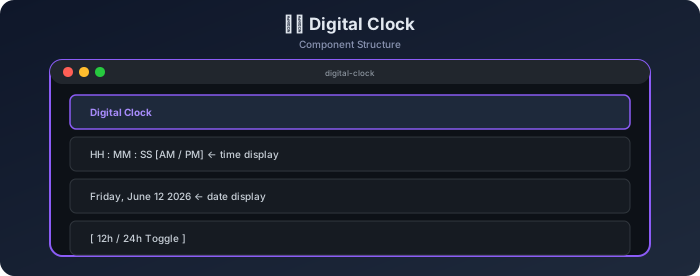
Component Structure
How It Works — Flow Diagram
Step-by-Step Build
Step 1 — HTML Structure
html example
<div class="clock-wrapper">
  <div class="clock">
    <div class="time-display">
      <span id="hours">00</span>
      <span class="colon">:</span>
      <span id="minutes">00</span>
      <span class="colon">:</span>
      <span id="seconds">00</span>
      <span id="ampm" class="ampm"></span>
    </div>
    <div id="dateDisplay" class="date-display"></div>
    <button id="toggleFormat" class="toggle-btn">Switch to 12h</button>
  </div>
</div>
Step 2 — State
js example
let is24Hour = true;

const hoursEl   = document.getElementById("hours");
const minutesEl = document.getElementById("minutes");
const secondsEl = document.getElementById("seconds");
const ampmEl    = document.getElementById("ampm");
const dateEl    = document.getElementById("dateDisplay");
const toggleBtn = document.getElementById("toggleFormat");
Step 3 — Core Update Function
Example
function updateClock() {
const now = new Date();
let hours = now.getHours(); // 0–23
let minutes = now.getMinutes(); // 0–59
let seconds = now.getSeconds(); // 0–59
let ampm = "";
if (!is24Hour) {
ampm = hours >= 12 ? "PM" : "AM";
hours = hours % 12 || 12; // convert 0 → 12, 13 → 1, etc.
}
hoursEl.textContent = String(hours).padStart(2, "0");
minutesEl.textContent = String(minutes).padStart(2, "0");
secondsEl.textContent = String(seconds).padStart(2, "0");
ampmEl.textContent = ampm;
updateDate(now);
}
Step 4 — Date Display
Example
const DAYS = ["Sunday","Monday","Tuesday","Wednesday","Thursday","Friday","Saturday"];
const MONTHS = ["January","February","March","April","May","June",
"July","August","September","October","November","December"];
function updateDate(now) {
const day = DAYS[now.getDay()];
const month = MONTHS[now.getMonth()];
const date = now.getDate();
const year = now.getFullYear();
dateEl.textContent = `${day}, ${month} ${date} ${year}`;
}
Step 5 — 12h / 24h Toggle
Example
toggleBtn.addEventListener("click", () => {
is24Hour = !is24Hour;
toggleBtn.textContent = is24Hour ? "Switch to 12h" : "Switch to 24h";
updateClock(); // update immediately so there's no 1-second delay
});
Step 6 — Start the Clock
js example
updateClock();              // run immediately to avoid 1-second blank screen
setInterval(updateClock, 1000);
Console Output
Output
// At exactly 09:05:03 in 12h mode
hours   = 9  → padStart → "09"
minutes = 5  → padStart → "05"
seconds = 3  → padStart → "03"
ampm = "AM"
DOM: "09:05:03 AM"

// At exactly 14:30:00 in 24h mode
hours   = 14 → padStart → "14"
minutes = 30 → padStart → "30"
seconds = 0  → padStart → "00"
DOM: "14:30:00"
Final Output — What It Looks Like
Edge Cases to Handle
| Situation | Expected Behavior | ||
|---|---|---|---|
| Midnight in 12h mode | `0 % 12 \ | \ | 12 = 12` → shows "12:00:00 AM" |
| Noon in 12h mode | Shows "12:00:00 PM" (not 0) | ||
| Single-digit seconds | padStart(2, "0") → "09" | ||
| Tab in background | setInterval may throttle — clock catches up when visible | ||
| New year rollover | new Date() always reflects system time |
Challenge Yourself
- Timezone selector — let users pick a timezone via
Intl.DateTimeFormat - Alarm — add a time picker and play a sound when the clock reaches that time
- Blinking colon — toggle the
:separator's visibility every 500ms - CSS flip animation — animate each digit flipping like a physical clock
- World clocks — show 3 clocks for different cities simultaneously
Best Practices
- Call
updateClock()once beforesetIntervalto show the time immediately - Always use
padStart(2, "0")— never rely on the hour/minute/second being two digits - Use
constfor DOM references — they don't need to change - Keep
updateClock()side-effect free except for DOM updates - Use
Intl.DateTimeFormatfor locale-aware date/time formatting in production
Continue the lesson path
Study next in this module
01Mini ProjectsBuild a JavaScript Counter Application - Step by Step Project TutorialLearn to build a counter app in JavaScript with increment, decrement, reset, min/max limits, and localStorage persistence. Great first JavaScript DOM project.02Mini ProjectsBuild a Dynamic Resume Builder in JavaScript - Step by Step TutorialLearn to build an interactive resume builder in JavaScript that generates a live HTML preview as you fill out form fields, with print and PDF export support.03Mini ProjectsBuild a JavaScript Image Carousel - Step by Step Project TutorialLearn to build an auto-playing image carousel in JavaScript with prev/next buttons, dot indicators, touch swipe support, and smooth CSS transitions.04Mini ProjectsBuild a JavaScript Email Validator - Step by Step Project TutorialLearn to build an email validator in JavaScript using regex, real-time feedback, common domain suggestions, and bulk validation. A great regex and DOM project.