JavaScript Notes
HubYour First JavaScript Program — Hello World & Beyond Complete Guide 2026History of JavaScript — Complete Timeline from 1995 to 2026How JavaScript Runs — Complete Guide to Execution, Call Stack & Event LoopJavaScript Engine Explained — V8, JIT Compilation & How Code Gets FastJavaScript Use Cases — 15 Things You Can Build with JavaScript (2026)JavaScript vs Other Languages — Complete Comparison Guide 2026What is JavaScript? Complete BeginnerWhy Learn JavaScript in 2026? Career, Salary, Scope & Benefits GuideJavaScript Break Statement Tutorial – Complete Guide with ExamplesJavaScript Break and Continue Statements – Complete Guide with ExamplesJavaScript Continue Statement Tutorial – Skip Iterations with ExamplesJavaScript Do While Loop Tutorial – Execute at Least Once with ExamplesJavaScript Do-While Loop Tutorial – Complete Guide with ExamplesJavaScript For Loop Tutorial – Complete Guide with ExamplesJavaScript If Statement Tutorial – Conditional Logic with ExamplesJavaScript If Else Statement Tutorial – Complete Guide with ExamplesJavaScript If Statement Tutorial – Complete Guide with ExamplesJavaScript Nested If Statement Tutorial – Multi-Level Conditions with ExamplesNested Loops in JavaScriptJavaScript Control Flow Practice Programs – 20+ Exercises with SolutionsJavaScript Switch Statement Tutorial – Case Matching with ExamplesSwitch Statement in JavaScriptJavaScript While Loop Tutorial – Complete Guide with ExamplesJavaScript Arrow Functions Tutorial – Syntax, Use Cases & this BindingJavaScript Callback Functions Explained – Synchronous & AsynchronousJavaScript Closures Explained – Lexical Scope, Private State & MemoryJavaScript Function Declaration Tutorial – Hoisting, Syntax & ScopeJavaScript Function Expression Tutorial – Anonymous, Named & AssignedJavaScript Higher Order Functions Tutorial – map, filter, reduce & Custom HOFsJavaScript IIFE Explained – Immediately Invoked Function ExpressionJavaScript Functions Practice Programs – 20+ Exercises with SolutionsJavaScript Recursion Tutorial – Call Stack, Base Case & Recursive PatternsJavaScript Array Basics - Complete BeginnerJavaScript Array Methods - Complete Reference Guide with ExamplesJavaScript Array Programs - 20+ Practice Problems with SolutionsJavaScript Arrays Basics - Complete Guide with Examples & DiagramsJavaScript Array filter() Method - Complete Tutorial with ExamplesJavaScript filter() Method — Complete Guide with Examples 2026JavaScript Array find() Method - Complete Tutorial with ExamplesJavaScript find() & findIndex() — Complete Guide 2026JavaScript Array map() Method - Complete Tutorial with ExamplesJavaScript map() Method — Transform Arrays Complete Guide 2026JavaScript map() vs forEach() - Key Differences with ExamplesJavaScript Array push() and pop() - Complete Tutorial with ExamplesJavaScript Array reduce() Method - Complete Tutorial with ExamplesJavaScript reduce() Method — Complete Deep Dive with Examples 2026JavaScript Array shift() and unshift() - Complete Tutorial with ExamplesJavaScript Array sort() Method - Complete Tutorial with ExamplesJavaScript splice() vs slice() - Complete Tutorial with ExamplesJavaScript Object Destructuring - Complete Guide with ExamplesJavaScript Objects - Complete Guide to Object Basics with ExamplesJavaScript Object Methods - Built-in Methods & Custom Methods Complete GuideJavaScript Object Programs - Practice Problems with SolutionsJavaScript Object Properties - Keys, Values, Descriptors & Dynamic PropertiesJavaScript Rest Operator (...) - Parameters, Destructuring & Complete GuideJavaScript Spread Operator (...) - Complete Guide with ExamplesJavaScript this Keyword - Complete Guide with Binding Rules & ExamplesJavaScript String Basics - Complete Guide to Strings with ExamplesJavaScript String Methods - Complete Reference with Examples & OutputJavaScript String Programs - Practice Problems with SolutionsJavaScript String Replacing - replace(), replaceAll() & Regex Patterns GuideJavaScript String Searching Methods - includes, indexOf, startsWith, match GuideJavaScript Template Literals (ES6) - Complete Guide with Tagged TemplatesJavaScript DOM Changing Content - textContent, innerHTML, setAttribute Complete GuideJavaScript DOM Changing Styles - CSS Manipulation, classList & getComputedStyleJavaScript DOM Creating Elements - createElement, appendChild, DocumentFragment GuideJavaScript DOM Introduction - Complete Guide to Document Object ModelJavaScript DOM Traversal - Navigate Parent, Child & Sibling NodesJavaScript DOM Forms - Form Handling, Validation & FormData Complete GuideJavaScript localStorage - Complete Guide to Web Storage APIlocalStorage vs sessionStorage - JavaScript Web Storage Comparison GuideJavaScript DOM Removing Elements - remove(), removeChild() Complete GuideJavaScript DOM Selecting Elements - querySelector, getElementById Complete GuideJavaScript sessionStorage - Complete Guide to Session-Based Web StorageJavaScript Click Event - addEventListener, Event Handler Complete GuideEvent Bubbling in JavaScript – Complete Guide with Examples (2026)Event Capturing in JavaScript – Complete Guide to Capture Phase (2026)Event Delegation in JavaScript – Complete Guide with Examples (2026)JavaScript Event Object – Complete Guide with Examples (2026)JavaScript Form Events – Complete Guide with Examples (2026)JavaScript Keyboard Events – Complete Guide to keydown, keyup & Key Properties (2026)JavaScript Mouse Events – Complete Guide with Examples (2026)JavaScript Async Await - Complete Guide with Examples & Error HandlingJavaScript Call Stack - Complete Guide with Visual Diagrams & ExamplesJavaScript Callback Queue (Task Queue) - Complete Guide with DiagramsJavaScript Callbacks - Complete Guide with Callback Hell & PatternsJavaScript Event Loop - Complete Guide with Visual Diagrams & ExamplesJavaScript Fetch API - Complete Guide with Examples, Error Handling & Async/AwaitJSON in JavaScript - Complete Guide: Parse, Stringify, Fetch & Error HandlingJavaScript Promise.all, Promise.race, Promise.any, Promise.allSettled — Complete Guide 2026JavaScript Promises - Complete Guide with Chaining, Error Handling & Event LoopSynchronous vs Asynchronous JavaScript — Complete Explanation 2026JavaScript Web APIs - Complete Guide: setTimeout, fetch, DOM Events & MoreClosures in JavaScript — Complete Guide with Examples 2026Hoisting in JavaScript — Complete Guide with Examples 2026Prototype in JavaScript — Complete Guide with Examples 2026Scope in JavaScript — Complete Guide with Examples 2026Browser Object Model (BOM) in JavaScript — Complete GuideCanvas API in JavaScript — Complete Drawing & Animation GuideDrag and Drop API in JavaScript — Complete TutorialGeolocation API in JavaScript — Get User Location TutorialHistory API in JavaScript — SPA Routing & pushState GuideNotification API in JavaScript — Push Notifications TutorialService Workers in JavaScript — Offline, Caching & PWA GuideWeb Storage API in JavaScript — localStorage & sessionStorage GuideWeb Workers in JavaScript — Multithreading & Background Tasks GuideJavaScript Interview — Behavioral Questions and Soft Skills Guide 2026Common JavaScript Interview Mistakes — What to Avoid 2026JavaScript Interview Tips — Strategy and Preparation Guide 2026JavaScript Mock Interview — Practice Questions with Solutions 2026JavaScript System Design — Frontend Architecture Interview Guide 2026JavaScript apply() Method - Complete Guide with ExamplesJavaScript bind() Method - Complete Guide with ExamplesJavaScript call() Method - Complete Guide with ExamplesJavaScript call() vs apply() vs bind() - Complete Comparison GuideJavaScript Currying - Complete Guide with ExamplesJavaScript Debounce - Complete Guide with Timeline DiagramsJavaScript Execution Context - Complete Guide with Stack DiagramsJavaScript Garbage Collection - Memory Lifecycle & Mark-and-Sweep GuideJavaScript Generators - Complete Guide with yield and IterationJavaScript Hoisting - Complete Guide with var, let, const & FunctionsJavaScript Iterators - Complete Guide with Iterator ProtocolJavaScript Lexical Scope - Complete Guide with Scope Chain DiagramsJavaScript Memory Management - Complete Guide with Lifecycle DiagramsJavaScript Modules - Complete Guide with import export ExamplesJavaScript Scope - Complete Guide with var, let, const & Scope ChainJavaScript Symbols - Complete Guide with Well-Known SymbolsJavaScript Throttle - Complete Guide with Timeline DiagramsJavaScript Comments Complete Guide – Single Line, Multi-line & JSDoc with ExamplesJavaScript Data Types Complete Guide – Primitives, Objects & typeof with ExamplesJavaScript Input and Output Complete Guide – console.log, prompt, alert & DOM with ExamplesJavaScript Keywords Complete Guide – Reserved Words List with Examples for BeginnersJavaScript null vs undefined – Complete Guide with Differences, Examples & Interview Q&AJavaScript Operators Complete Guide – Arithmetic, Comparison, Logical & More with ExamplesJavaScript Strict Mode Complete Guide – JavaScript Type Conversion Complete Guide – Explicit & Implicit Coercion with ExamplesJavaScript var vs let vs const – Complete Guide with Scope, Hoisting & Best PracticesJavaScript Variables Complete Guide – Declaration, Naming Rules & Memory Model for BeginnersDeque (Double-Ended Queue) in JavaScript — Complete GuideLinked List in JavaScript — Nodes, Pointers & Operations GuideJavaScript Map — Key-Value Data Structure Complete GuideJavaScript Numbers — IEEE 754, Precision, and Number Methods GuidePriority Queue in JavaScript — Min Heap Implementation GuideQueue Data Structure in JavaScript — FIFO, Enqueue & Dequeue ExplainedJavaScript Set — Unique Values Data Structure GuideSorting Algorithms in JavaScript — Bubble, Merge, Quick Sort GuideStack Data Structure in JavaScript — LIFO, Push, Pop ExplainedJavaScript Typed Arrays — ArrayBuffer, Int32Array, Float64Array GuideJavaScript WeakMap — Weak References, Memory Management GuideJavaScript WeakSet — Complete Guide with Examples 2026Applications of JavaScript — Where JS is Used in 2026 Complete GuideJavaScript Backend Frameworks — Node.js, Express, NestJS Complete Guide 2026JavaScript Frontend Libraries — React, Vue, Angular, Svelte Complete Overview 2026JavaScript Full-Stack Frameworks — Next.js, Remix, Astro Complete Guide 2026JavaScript Career Paths & Jobs — Salary, Roles & Roadmap 2026JavaScript Libraries vs Frameworks — Difference & Examples Complete Guide 2026JavaScript Custom Errors – Extend Error Class, Custom Error Types & instanceofJavaScript Debugging – console Methods, DevTools, Breakpoints & Error Stack TracesJavaScript throw Statement – Throw Errors, Custom Messages & Error TypesJavaScript Try Catch Finally – Error Handling Complete GuideTop 30 JavaScript Closure Interview Questions & Answers 2026Top 30 JavaScript Coding Interview Questions 2026 (With Solutions)Top 25 JavaScript Event Loop Interview Questions & Answers 2026Top 50 JavaScript Interview Questions & Answers 2026Top 30 JavaScript Promise Interview Questions & Answers 202650 Tricky JavaScript Output Questions 2026 (With Answers)Build a JavaScript Calculator - Step by Step Project TutorialBuild a JavaScript Image Carousel - Step by Step Project TutorialBuild a JavaScript Counter Application - Step by Step Project TutorialBuild a JavaScript Digital Clock - Step by Step Project TutorialBuild a Dynamic Resume Builder in JavaScript - Step by Step TutorialBuild a JavaScript Email Validator - Step by Step Project TutorialBuild a JavaScript Employee Database Management App - Step by Step TutorialBuild a JavaScript Expense Tracker - Step by Step Project TutorialBuild a GitHub Profile Search App in JavaScript - Step by Step TutorialBuild a JavaScript Image Slider - Step by Step Project TutorialBuild a JavaScript Multi-Step Progress Bar - Step by Step TutorialBuild JavaScript Nested Chat Comments - Step by Step Project TutorialBuild a JavaScript Notes App - Step by Step Project TutorialBuild a JavaScript OTP Input Field - Step by Step Project TutorialBuild a JavaScript Palindrome Checker - Step by Step Project TutorialBuild a JavaScript Price Range Slider - Step by Step Project TutorialBuild a JavaScript Prime Number Checker - Step by Step Project TutorialBuild a JavaScript QR Code Generator - Step by Step Project TutorialBuild a JavaScript QR Code Scanner - Step by Step Project TutorialBuild a JavaScript Quiz App - Step by Step Project TutorialBuild a JavaScript Random Number Generator - Step by Step TutorialBuild a JavaScript Random Password Generator - Step by Step TutorialJavaScript Image Resize & Compress — Canvas API Project 2026JavaScript Responsive Admin Dashboard — DOM & CSS Project 2026JavaScript Show/Hide Password Toggle — Beginner DOM Project 2026JavaScript Sortable Filterable Table — DOM & Array Methods Project 2026JavaScript Stopwatch Project — setInterval & DOM Tutorial 2026JavaScript Student Grade Calculator — Arrays & Logic Project 2026JavaScript Task Scheduler Project — CRUD & localStorage Tutorial 2026JavaScript Tic-Tac-Toe Game — DOM Manipulation Project Tutorial 2026JavaScript Toast Notification Project — Custom Alerts Tutorial 2026Build a Todo App in JavaScript - Step by Step Project TutorialJavaScript Unicode Character Value Finder — charCodeAt & fromCharCode Project 2026JavaScript Weather App Project — Fetch API & DOM Complete Tutorial 2026JavaScript Cheat Sheet 2026 — Complete Quick ReferenceImportant JavaScript Concepts Every Developer Must Know in 2026JavaScript One Shot Notes 2026 — Complete JS in One PageJavaScript Quick Revision Notes — Interview Prep in 30 Minutes 2026Abstraction in JavaScript OOP – Hide Complexity, Expose SimplicityJavaScript Classes Tutorial – ES6 Class Syntax, Inheritance & MoreJavaScript Constructor Functions – new Keyword, Prototype & OOP PatternsEncapsulation in JavaScript – Private Fields, Getters, Setters & Data ProtectionJavaScript Inheritance – extends, super, and Prototype-Based InheritanceObject-Oriented Programming in JavaScript – OOP Concepts Complete GuideJavaScript OOP Projects – Build Real-World Apps with Classes & OOPPolymorphism in JavaScript – Method Overriding, Duck Typing & Many FormsJavaScript Prototype Chain – How Property Lookup Works in JavaScriptJavaScript Prototypes – Prototype-Based Inheritance, Object.create & prototype PropertyJavaScript Advanced Practice Problems — 15+ Interview-Level Challenges 2026JavaScript Assignments — 10 Project-Based Learning Tasks 2026JavaScript Beginner Practice Problems — 20+ Coding Exercises 2026JavaScript Coding Challenges — 25 Interview-Style Problems 2026JavaScript Intermediate Practice Problems — 20+ Coding Challenges 2026JavaScript MCQs — 50 Multiple Choice Questions with Answers 2026JavaScript Regex Character Classes – [abc], [^abc], Ranges & ShortcutsJavaScript Regex Email Validation – Pattern, Edge Cases & Best PracticesJavaScript Regex Flags – g, i, m, s, u, y Flags Explained with ExamplesJavaScript Regex Groups – Capturing, Non-Capturing & Named GroupsJavaScript Number Validation with Regex — Complete Patterns & Examples 2026JavaScript Password Validation with Regex — Strength Checker & Patterns 2026JavaScript Regex Quantifiers – *, +, ?, {n,m}, Greedy vs Lazy MatchingJavaScript Regex Basics – Regular Expressions Tutorial for BeginnersJavaScript Regex Projects — 10 Practical Mini-Projects with Code 2026JavaScript URL Validation with Regex — Complete Patterns & Examples 2026JavaScript Username Validation with Regex — Patterns & Form Examples 2026JavaScript TutorialJavaScript Lazy Loading — Images, Modules & Components Complete Guide 2026JavaScript Performance Optimization — Speed Up Your Code Complete Guide 2026JavaScript Unit Testing with Jest — Complete Guide for Beginners 2026
Learn to build a fully functional calculator in JavaScript with operator logic, decimal support, keyboard input, and clean UI. Perfect beginner project.
What You'll Learn
- How to manage calculator state (current input, operator, result)
- How to handle button clicks and keyboard events
- How to perform arithmetic without using
eval() - How to handle edge cases like dividing by zero and chained operators
- How to structure a clean, reusable UI update pattern
Project Overview
A calculator lets users enter numbers, pick an operator (+, −, ×, ÷), and see a result. Behind the scenes, you're managing a small state machine: the first number, the chosen operator, and the second number.
Component Structure
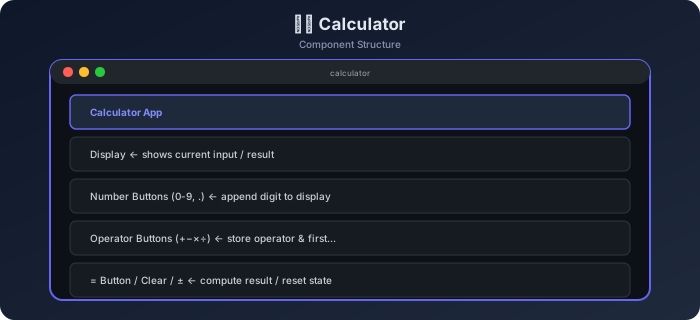
How It Works — Flow Diagram
Step-by-Step Build
Step 1 — HTML Structure
html example
<div class="calculator">
  <div id="display" class="display">0</div>
  <div class="buttons">
    <button class="btn-clear" data-action="clear">AC</button>
    <button class="btn-op"    data-action="toggle-sign">±</button>
    <button class="btn-op"    data-action="percent">%</button>
    <button class="btn-op"    data-operator="÷">÷</button>

    <button data-digit="7">7</button>
    <button data-digit="8">8</button>
    <button data-digit="9">9</button>
    <button class="btn-op" data-operator="×">×</button>

    <button data-digit="4">4</button>
    <button data-digit="5">5</button>
    <button data-digit="6">6</button>
    <button class="btn-op" data-operator="−">−</button>

    <button data-digit="1">1</button>
    <button data-digit="2">2</button>
    <button data-digit="3">3</button>
    <button class="btn-op" data-operator="+">+</button>

    <button class="btn-zero" data-digit="0">0</button>
    <button data-digit=".">.</button>
    <button class="btn-equals" data-action="equals">=</button>
  </div>
</div>
Step 2 — State Object
js example
const state = {
  display: "0",      // what's shown on screen
  firstNum: null,    // stored operand
  operator: null,    // stored operator symbol
  waitingForSecond: false  // flag: next digit starts a fresh number
};
Step 3 — Append a Digit
js example
function appendDigit(digit) {
  // prevent multiple decimal points
  if (digit === "." && state.display.includes(".")) return;

  if (state.waitingForSecond) {
    state.display = digit === "." ? "0." : digit;
    state.waitingForSecond = false;
  } else {
    state.display = state.display === "0" && digit !== "."
      ? digit
      : state.display + digit;
  }
  updateDisplay();
}
Step 4 — Store Operator
js example
function storeOperator(op) {
  if (state.operator && !state.waitingForSecond) {
    // chain calculation: compute previous before storing new
    calculate();
  }
  state.firstNum = parseFloat(state.display);
  state.operator = op;
  state.waitingForSecond = true;
}
Step 5 — Calculate Result
Example
function calculate() {
if (state.operator === null || state.waitingForSecond) return;
const second = parseFloat(state.display);
let result;
switch (state.operator) {
case "+": result = state.firstNum + second; break;
case "−": result = state.firstNum - second; break;
case "×": result = state.firstNum * second; break;
case "÷":
if (second === 0) { state.display = "Error"; updateDisplay(); resetState(); return; }
result = state.firstNum / second;
break;
}
state.display = String(parseFloat(result.toFixed(10)));
state.operator = null;
state.firstNum = null;
state.waitingForSecond = false;
updateDisplay();
}
Step 6 — Wire Events
Example
document.querySelector(".buttons").addEventListener("click", (e) => {
const btn = e.target.closest("button");
if (!btn) return;
if (btn.dataset.digit) appendDigit(btn.dataset.digit);
if (btn.dataset.operator) storeOperator(btn.dataset.operator);
if (btn.dataset.action === "equals") calculate();
if (btn.dataset.action === "clear") resetState();
if (btn.dataset.action === "toggle-sign") {
state.display = String(parseFloat(state.display) * -1);
updateDisplay();
}
if (btn.dataset.action === "percent") {
state.display = String(parseFloat(state.display) / 100);
updateDisplay();
}
});
Step 7 — Keyboard Support
Example
document.addEventListener("keydown", (e) => {
if (e.key >= "0" && e.key <= "9") appendDigit(e.key);
if (e.key === ".") appendDigit(".");
if (e.key === "+") storeOperator("+");
if (e.key === "-") storeOperator("−");
if (e.key === "*") storeOperator("×");
if (e.key === "/") { e.preventDefault(); storeOperator("÷"); }
if (e.key === "Enter" || e.key === "=") calculate();
if (e.key === "Escape") resetState();
if (e.key === "Backspace") backspace();
});
Console Output — Example Sequence
Output
// User presses: 9 × 8 =
appendDigit("9")   → display: "9"
storeOperator("×") → firstNum=9, operator="×", waitingForSecond=true
appendDigit("8")   → display: "8"
calculate()        → result = 9 × 8 = 72  → display: "72"

// User presses: ÷ 0 =
storeOperator("÷") → firstNum=72, operator="÷"
appendDigit("0")   → display: "0"
calculate()        → divide by zero!  → display: "Error"
Final Output — What It Looks Like
Edge Cases to Handle
| Situation | Expected Behavior |
|---|---|
Press = with no operator | Nothing happens |
| Divide by zero | Show "Error", reset state |
| Multiple decimal points | Ignore second . |
| Chain operators (5 + 3 × 2) | Compute 5+3=8 first, then 8×2 |
| Very long result | Use toFixed(10) + parseFloat to strip trailing zeros |
Challenge Yourself
- History tape — show a list of the last 5 calculations below the display
- Scientific mode — add sin, cos, √, x² buttons
- Theme switcher — toggle between dark and light calculator skins
- Memory keys — implement M+, M−, MR, MC
- Animate button press — add a CSS scale animation on click
Best Practices
- Never use
eval()— it's a security risk - Use a state object instead of scattered global variables
- Apply event delegation on the button container, not individual buttons
- Round floating-point results with
parseFloat(result.toFixed(10)) - Keep
calculate()a pure function that only reads state and returns a value
Continue the lesson path
Study next in this module
01Mini ProjectsBuild a JavaScript Image Carousel - Step by Step Project TutorialLearn to build an auto-playing image carousel in JavaScript with prev/next buttons, dot indicators, touch swipe support, and smooth CSS transitions.02Mini ProjectsBuild a JavaScript Counter Application - Step by Step Project TutorialLearn to build a counter app in JavaScript with increment, decrement, reset, min/max limits, and localStorage persistence. Great first JavaScript DOM project.03Mini ProjectsBuild a JavaScript Digital Clock - Step by Step Project TutorialLearn to build a live digital clock in JavaScript using Date object, setInterval, 12/24-hour toggle, AM/PM display, and smooth CSS styling.04Mini ProjectsBuild a Dynamic Resume Builder in JavaScript - Step by Step TutorialLearn to build an interactive resume builder in JavaScript that generates a live HTML preview as you fill out form fields, with print and PDF export support.